HTML to PDF Converter – Convert HTML Files to PDF Online
HTML to PDF Converter – Convert HTML Files to PDF Online: 7 Easy Methods
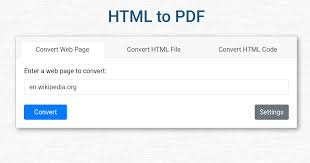
What Is an HTML to PDF Converter?
An HTML to PDF converter is a tool that transforms HTML content into a PDF document.
HTML, or HyperText Markup Language, is the standard markup language used to structure content on websites. It can define headings, paragraphs, images, tables, links, forms, lists, and other elements.
PDF, or Portable Document Format, is designed to preserve the visual appearance of a document across different devices.
This makes HTML-to-PDF conversion useful when you have web content that needs to become a fixed document.
What Can You Convert?
Depending on the tool, you may be able to convert:
.htmlfiles.htmfiles- Saved webpages
- HTML reports
- Online webpages
- HTML invoices
- Web documentation
- Portfolio pages
- Product pages
- Web-based forms
Some advanced converters can also process CSS, JavaScript, images, fonts, and external resources.
Why Is HTML to PDF Conversion Useful?
HTML is excellent for displaying content dynamically in a browser. PDF is better suited to documents that need a fixed layout.
For example, a website may change over time, while a PDF snapshot can preserve the content as it appeared when the document was created.
This is especially useful for:
- Reports
- Invoices
- Receipts
- Documentation
- Research material
- Business records
- Presentations
- Offline reading
Understanding HTML Files
Before converting HTML to PDF, it helps to understand how HTML works.
A simple HTML document may look like this:
<!DOCTYPE html>
<html>
<head>
    <title>Example Page</title>
</head>
<body>
    <h1>My Report</h1>
    <p>This is an example HTML document.</p>
</body>
</html>
The HTML defines the structure of the content.
CSS can then control its appearance.
For example:
<h1>Annual Report</h1>
<p>This report contains company information.</p>
CSS could control the font, spacing, colors, borders, and page appearance.
HTML and CSS Work Together
A webpage usually contains more than HTML.
It may use:
- HTML for structure
- CSS for styling
- JavaScript for interaction
- Images for visual content
- Web fonts for typography
When converting HTML to PDF, the converter needs to determine which of these elements can be reproduced in a static PDF.
That’s why simple HTML pages often convert easily, while highly interactive websites can be more challenging.
Why Convert HTML to PDF?
There are many reasons to turn HTML content into PDF.
1. Create a Fixed Document
Webpages can change.
Content may be updated, removed, or redesigned. A PDF provides a snapshot of the information at a particular point in time.
2. Make Content Printable
HTML pages aren’t always optimized for printing.
A PDF can provide a controlled page layout that is easier to print.
3. Share Documents
PDF is widely supported across computers, tablets, and smartphones.
You can send a PDF through email, messaging applications, cloud storage, or other channels.
4. Archive Web Content
Businesses and organizations sometimes need to preserve records.
Converting HTML to PDF can provide a convenient archive copy.
5. Create Professional Reports
HTML is often used to generate reports automatically.
The generated HTML can then be converted into PDF for customers, managers, or clients.
6. Generate Invoices
Many websites and applications create invoices using HTML and CSS.
Converting the HTML invoice into PDF gives customers a downloadable document.
7. Enable Offline Reading
A PDF can be opened later without needing to load the original webpage.
This can be useful when traveling or working without an internet connection.
How Does HTML to PDF Conversion Work?
HTML-to-PDF conversion is essentially the process of rendering HTML content into a PDF page.
Step 1: Read the HTML
The converter loads the HTML document and identifies its elements.
It may find:
- Headings
- Paragraphs
- Images
- Tables
- Links
- Lists
- Forms
Step 2: Load CSS
If the HTML references CSS, the converter may apply those styles.
This can include:
- Fonts
- Colors
- Margins
- Padding
- Borders
- Layout
- Text size
Step 3: Render the Page
The converter creates a visual representation of the webpage.
Some advanced systems use browser-style rendering engines to reproduce modern web layouts.
Step 4: Create PDF Pages
The rendered content is divided into PDF pages.
Page size, margins, orientation, and print settings influence how the content is divided.
Step 5: Generate the Final PDF
The final PDF is created and can then be saved or shared.
How to Convert HTML Files to PDF Online
An online HTML-to-PDF converter can be convenient when you don’t want to install software.
Step 1: Prepare Your HTML File
Locate the HTML or HTM file you want to convert.
If your HTML uses external CSS, images, fonts, or JavaScript files, make sure the converter supports those resources.
Step 2: Open an HTML to PDF Converter
Choose an online conversion tool that supports HTML files.
Check its file-size limits and privacy information before uploading documents containing sensitive data.
Step 3: Upload the HTML File
Upload your HTML document.
Some tools may also allow you to paste HTML code directly into a browser-based editor.
Step 4: Choose PDF Settings
Depending on the converter, you may be able to select:
- Page size
- Orientation
- Margins
- Scale
- Header
- Footer
- Page numbers
For standard documents, A4 or Letter page sizes are commonly useful.
Step 5: Start Conversion
Click the conversion button.
The service renders the HTML and generates the PDF.
Step 6: Review the Output
Open the generated PDF and check:
- Text alignment
- Images
- Tables
- Page breaks
- Fonts
- Margins
- Links
- Headers and footers
Step 7: Save the PDF
Give the file a descriptive name.
For example:
company-annual-report.pdf
is easier to find later than:
output.pdf
7 Important Features of an HTML to PDF Converter
Not every converter handles HTML in the same way.
1. CSS Support
CSS support is extremely important.
Without proper CSS rendering, the final PDF may look very different from the original webpage.
2. Image Support
Images should maintain appropriate dimensions and quality.
If an image is referenced from another location, the converter needs access to it.
3. JavaScript Support
Some HTML pages rely on JavaScript to load or display content.
A converter with browser-style rendering may handle these pages better.
4. Page Layout Controls
Look for options such as:
- Page size
- Margins
- Orientation
- Scaling
- Print backgrounds
These settings can significantly improve the final document.
5. Header and Footer Support
Business documents may benefit from automatic headers, footers, dates, and page numbers.
6. Font Support
If your webpage uses custom fonts, check whether the converter can load them correctly.
7. Security and Privacy
When converting private webpages or business documents, understand how the service handles your uploaded content.
HTML vs PDF: What’s the Difference?
HTML and PDF are designed for different purposes.
| Feature | HTML | |
|---|---|---|
| Web display | Excellent | Limited |
| Responsive design | Excellent | Limited |
| Fixed layout | No | Excellent |
| Interactivity | Excellent | Limited |
| Printing | Good | Excellent |
| Search engines | Excellent | Limited |
| Offline reading | Moderate | Excellent |
| Website navigation | Excellent | Moderate |
| Document sharing | Good | Excellent |
| Web application support | Excellent | Limited |
HTML is ideal for interactive web content.
PDF is better when you need a stable document that looks consistent across devices.
How to Prepare HTML for PDF Conversion
A little preparation can prevent many formatting problems.
Use Print-Friendly CSS
If you’re controlling the HTML yourself, create print-specific CSS.
For example:
@media print {
    .navigation {
        display: none;
    }

    .content {
        width: 100%;
    }
}
This lets you hide website elements that don’t belong in the PDF.
Avoid Unnecessary Web Elements
A webpage might contain:
- Navigation menus
- Cookie banners
- Advertisements
- Pop-ups
- Social buttons
- Interactive controls
These elements may not belong in the final PDF.
Use Clear Page Breaks
Long reports can benefit from controlled page breaks.
For example, separate major sections so that headings aren’t left at the bottom of a page with the content appearing on the next page.
Optimize Images
Very large images can increase PDF size.
Use appropriately sized images while maintaining sufficient quality for printing.
HTML to PDF for Businesses
Businesses frequently use HTML because web applications can generate documents dynamically.
An HTML template can be filled with customer or transaction data and then converted into PDF.
Common Business Uses
HTML-to-PDF conversion can be useful for:
- Invoices
- Receipts
- Quotes
- Reports
- Statements
- Certificates
- Product catalogs
- Business proposals
- Shipping documents
- Customer records
Automated Reports
A business application might follow this workflow:
Business data
     ↓
HTML template
     ↓
CSS styling
     ↓
HTML rendering
     ↓
PDF generation
     ↓
Customer or employee
This approach allows the same template to generate hundreds or thousands of consistent documents.
Why Automation Helps
Automated PDF generation reduces repetitive work.
Instead of manually copying data into a document, the application can generate the document automatically.
This can improve consistency and reduce the chance of manual errors.
HTML to PDF for Developers
Developers often use HTML-to-PDF tools when applications need document-generation capabilities.
Common Development Uses
Developers can use HTML templates to create:
- Invoices
- Reports
- Receipts
- Certificates
- Documentation
- Order summaries
- Customer statements
HTML is convenient because developers can use familiar web technologies such as HTML and CSS to design the document.
Template-Based PDF Generation
A reusable HTML template might contain placeholders for dynamic data.
For example:
<h1>Invoice #{{invoice_number}}</h1>
<p>Customer: {{customer_name}}</p>
<p>Total: {{total}}</p>
The application fills in the values before converting the page to PDF.
This approach makes it possible to maintain a consistent document design while changing the underlying data.
HTML to PDF for Students
Students can also benefit from HTML-to-PDF conversion.
Web-based assignments, project reports, portfolios, and documentation can be saved as PDF files for submission or printing.
Student Use Cases
You might convert HTML to PDF for:
- Coursework
- Research reports
- Programming projects
- Web design assignments
- Online portfolios
- Technical documentation
- Project presentations
If a teacher or institution specifies a particular file format, always follow those submission requirements.
How to Convert a Webpage to PDF
HTML files aren’t the only source you can convert.
Some tools can convert an online webpage directly into a PDF.
Basic Process
- Copy the webpage URL.
- Open a webpage-to-PDF conversion tool.
- Enter the URL.
- Choose page settings.
- Start the conversion.
- Review the resulting PDF.
- Save the document.
Why Convert a Webpage?
You might want to save:
- An article
- A research page
- A product page
- A tutorial
- Documentation
- A public report
A PDF can preserve a useful snapshot for offline reference.
Dynamic Websites Can Be Different
Some websites load content dynamically using JavaScript.
If the converter doesn’t execute JavaScript, parts of the page may be missing from the resulting PDF.
For dynamic webpages, choose a tool that supports modern browser rendering.
Can You Convert HTML to PDF on Mobile?
Yes, depending on the converter.
A mobile-friendly online service can allow you to upload an HTML file or provide a webpage URL and create a PDF.
Mobile Conversion Tips
For better results:
- Use a modern browser.
- Ensure the HTML file is accessible.
- Check whether external images load correctly.
- Review the PDF before sharing.
- Use a clear filename.
- Avoid uploading confidential HTML files to unknown services.
For complex webpages, a desktop workflow may provide more control.
Common HTML to PDF Conversion Problems
Even good converters can encounter difficult webpages.
Problem 1: CSS Looks Different
Some CSS properties aren’t supported equally by all PDF engines.
A page that looks perfect in Chrome may look different in a PDF.
Problem 2: Images Are Missing
Images can disappear when their URLs aren’t accessible or when local file paths aren’t supported.
Problem 3: Fonts Change
Custom web fonts may not load correctly.
The PDF may use a fallback font instead.
Problem 4: Page Breaks Look Bad
Tables or sections may split across pages unexpectedly.
Print-specific CSS can help control these situations.
Problem 5: JavaScript Content Is Missing
If the converter doesn’t execute JavaScript, dynamically generated content may not appear.
Problem 6: PDF Is Too Large
Large images, embedded fonts, and complex pages can create large PDF files.
Image optimization and appropriate PDF compression can help.
Problem 7: Links Don’t Work
Depending on the conversion method, hyperlinks may or may not remain clickable.
If clickable links are important, confirm that the converter preserves them.
Privacy and Security When Converting HTML
HTML files can contain more information than they appear to.
A webpage or HTML document might include:
- Customer information
- Internal links
- Business data
- API references
- Private content
- Embedded scripts
- Tracking information
Before using an online converter, consider the sensitivity of the information.
Check File Handling Policies
Look for information about:
- Upload storage
- Automatic deletion
- Encryption
- Data processing
- Account requirements
For confidential business documents, an offline conversion process may be more appropriate.
Be Careful With Webpage URLs
If you’re converting a private webpage, don’t assume that providing its URL to a third-party service is safe.
A service may need access to the page to render it.
For private content, consider using a local conversion method instead.
Best Practices for HTML to PDF Conversion
Create Print-Friendly HTML
Designing HTML specifically for printing can dramatically improve PDF results.
Test Different Page Sizes
A layout designed for a large desktop screen may not automatically fit an A4 or Letter page.
Control Margins
Appropriate margins prevent text and images from being pushed too close to the edge.
Use High-Quality Images
Make sure images are large enough for the intended output without unnecessarily increasing file size.
Check Every Page
Don’t only inspect the first page.
Long documents can contain unexpected page breaks, empty pages, or split tables later in the file.
Keep the HTML Source
If the PDF needs to be updated later, keeping the original HTML makes regeneration much easier.
Use Consistent Templates
For recurring reports or invoices, create one well-designed HTML template and reuse it.
Frequently Asked Questions
1. What is an HTML to PDF converter?
An HTML to PDF converter is a tool that transforms HTML content into a PDF document. It can process HTML files, and some tools can also convert webpages directly into PDFs.
2. Can I convert HTML to PDF online?
Yes. Online converters allow you to upload HTML files or, in some cases, enter a webpage URL and generate a PDF through your browser.
3. Can CSS be converted from HTML to PDF?
Many converters support CSS, but support varies. Basic CSS usually works well, while advanced or browser-specific CSS features may render differently.
4. Can I convert a webpage to PDF?
Yes. Many browser-based tools and browsers provide webpage-to-PDF functionality. The final result depends on the webpage’s layout and the conversion engine.
5. Why does my HTML PDF look different from the webpage?
A browser and a PDF converter don’t always render every HTML and CSS feature identically. Unsupported CSS, JavaScript-generated content, fonts, images, and responsive layouts can all affect the final result.
6. Can JavaScript be included in an HTML-to-PDF conversion?
Some advanced converters can execute JavaScript before generating the PDF. Others process only the static HTML and CSS, so dynamic content may be missing.
7. Can I convert HTML to PDF on my phone?
Yes, if the selected tool supports mobile browsers. Simple HTML files and webpages can often be converted from smartphones or tablets.
8. Is HTML to PDF conversion free?
Some tools offer free HTML-to-PDF conversion, while others charge for advanced features, larger files, batch processing, or API access.
9. Can HTML invoices be converted to PDF?
Yes. HTML is commonly used to create invoice templates, and those templates can be populated with transaction data and converted into PDF invoices.
10. Can I convert multiple HTML files to PDF?
Some converters support batch processing, while others handle one file at a time. If you regularly convert many documents, batch support can save significant time.
11. Is it safe to convert HTML files online?
Safety depends on the service and the content you’re uploading. Review its privacy practices before uploading confidential documents or private webpages.
12. Should I keep the HTML file after converting it?
Yes. Keeping the original HTML is useful because you can edit it and generate an updated PDF later. The HTML remains the source document, while the PDF is generally the finished presentation.
Conclusion
An HTML to PDF converter provides a practical way to turn web-based content into fixed, printable, and shareable documents. HTML is excellent for creating interactive and responsive webpages, while PDF is better suited to documents that need a stable visual layout.
Whether you’re converting an individual HTML file, creating business invoices, generating reports, saving webpages, or building an automated document system, the right conversion method can save time and reduce manual work.
For occasional conversions, an online HTML-to-PDF tool may be the simplest option. For businesses and developers generating documents regularly, a template-based automated workflow can provide more control and consistency.
Before converting, make sure your HTML is clean, your CSS is print-friendly, and your images and fonts are accessible. Always review the final PDF for page breaks, missing content, and formatting problems. If your HTML contains sensitive information, choose a conversion method that matches your privacy requirements.
With a well-prepared HTML file and the right converter, turning HTML into a professional PDF can be quick, reliable, and straightforward.